Unsubinator setup guide

โ† Back to Unsubinator

You'll create a free Google Cloud project so that Unsubinator can read your Gmail headers with your own permission. It costs nothing and needs no billing account. Allow about ten minutes.

The pictures are illustrations with example data (you@example.com and a made-up client ID). Google changes its screens from time to time, so yours may look a little different, but the names of the buttons and fields should match.

You'll need this item ID in step 7: mokkckihdecngaghbheeecogajbpaahc

1. Download and unzip

  1. Download unsubinator-selfinstall-v0.2.8.zip and unzip it. You'll get a folder called unsubinator with manifest.json inside it. Keep it somewhere permanent, because Chrome loads the extension from that folder.
2. Create your Google Cloud project

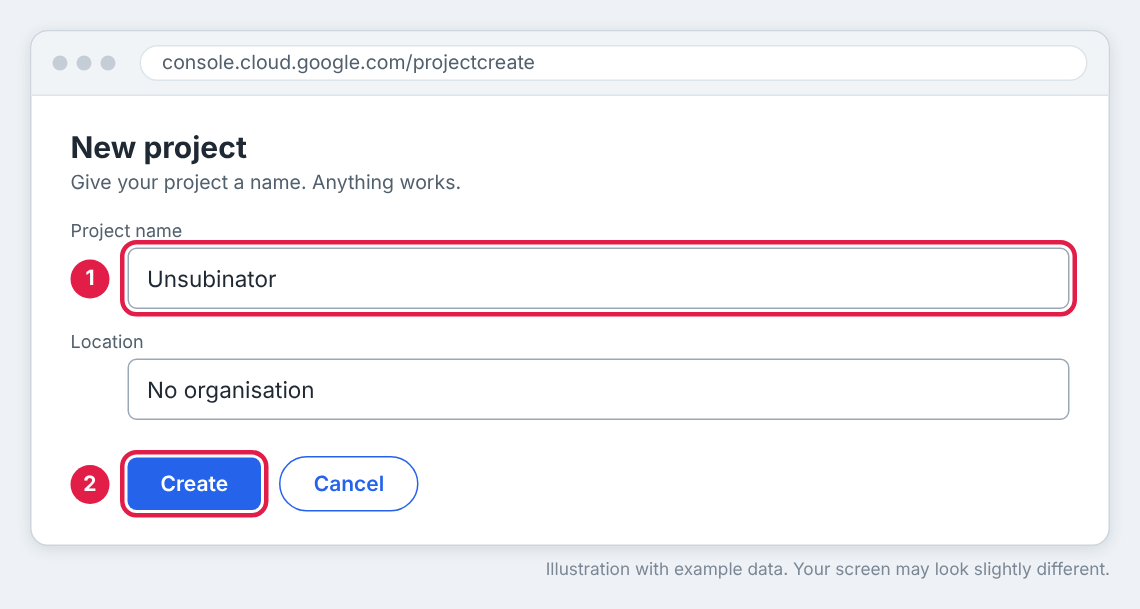
  1. Go to console.cloud.google.com/projectcreate and sign in. Type a project name (1) and click Create (2). Ignore any free trial offers.
    Create project form with the name Unsubinator
    Name it anything you like.
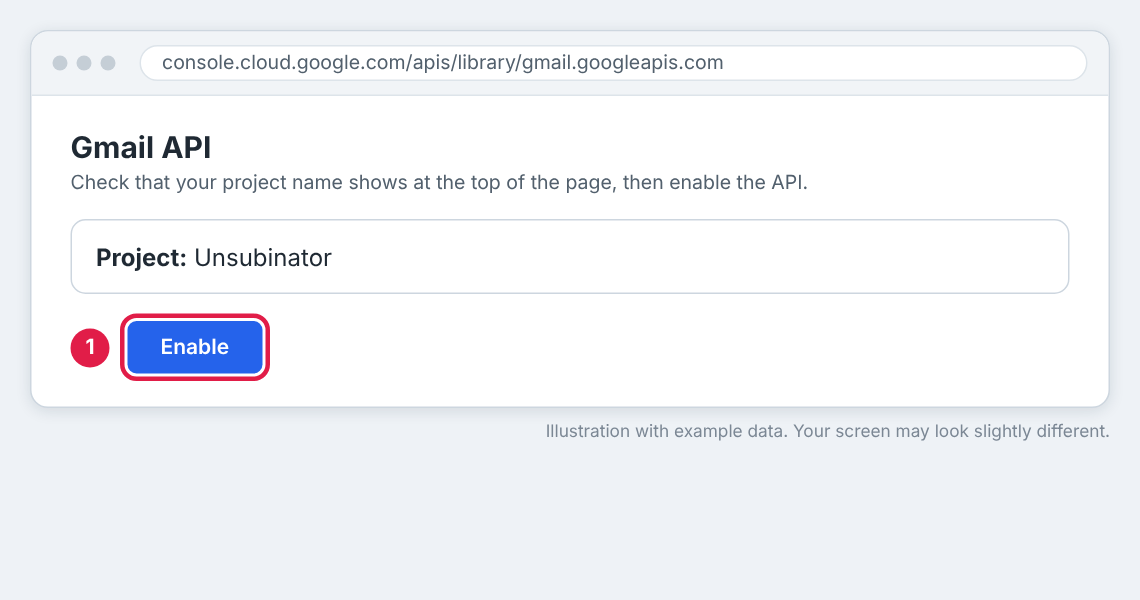
  2. With the new project selected, open the Gmail API page and click Enable.
    Gmail API page with the Enable button highlighted
    Check that your project name is shown at the top first.

3. Set up the consent screen

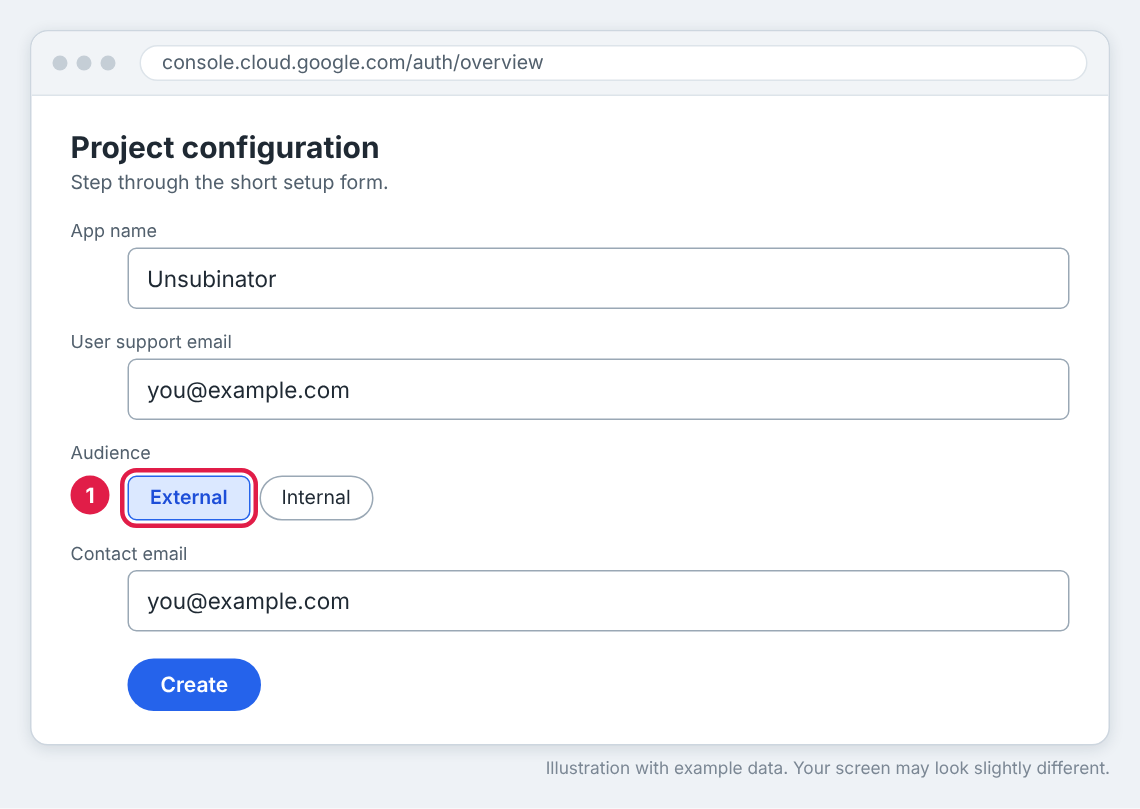
  1. Open Google Auth Platform and click Get started. Enter an app name (for example "Unsubinator"), choose your email as the support email, choose External as the audience (1), add your email as the contact, tick the agreement and click Create.
    Project configuration form with External audience selected
    Use your own email address instead of the example.
  2. Go to Data access, click Add or remove scopes (1), paste https://www.googleapis.com/auth/gmail.readonly into the manual scopes box (2), then click Update and Save.
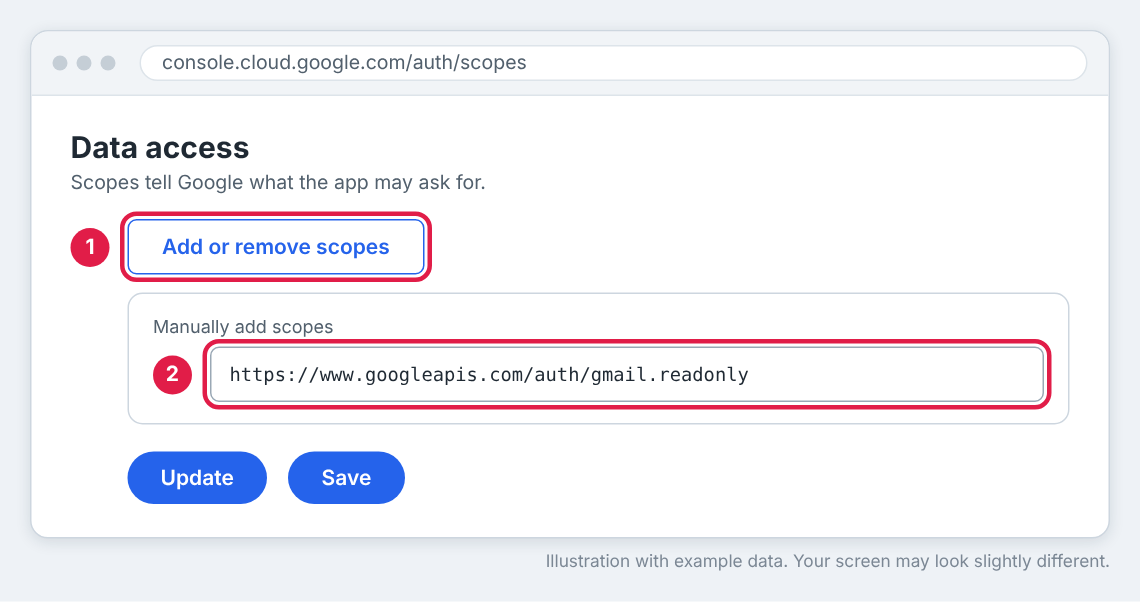
    Data access page with the Gmail read-only scope entered
    This is the only permission Unsubinator asks for.
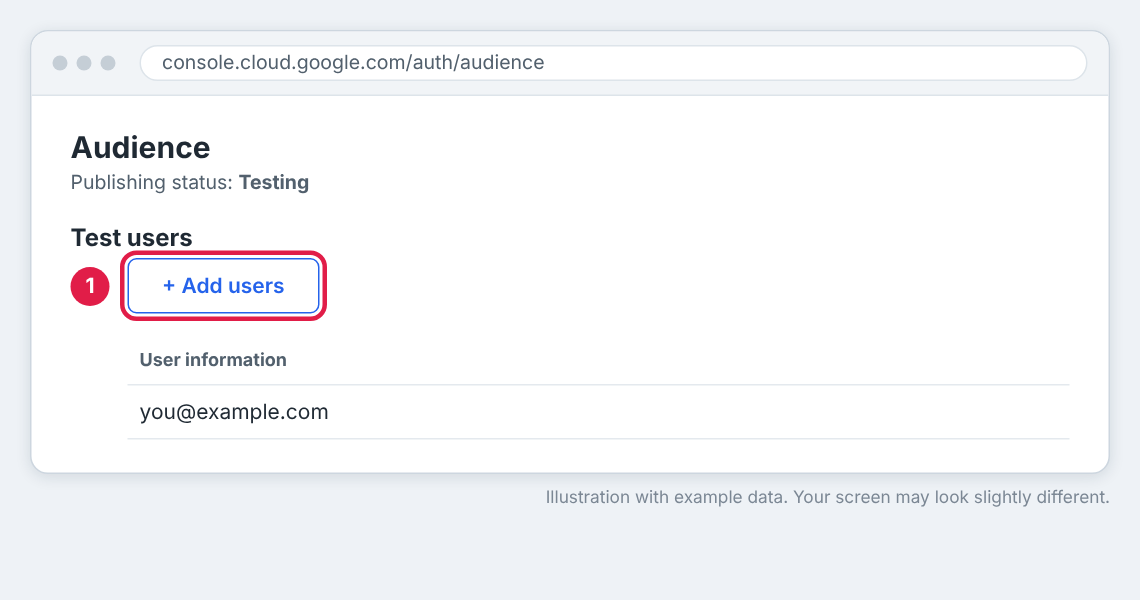
  3. Go to Audience, find Test users, click Add users (1) and add your own Gmail address. Only addresses on this list can sign in.
    Audience page with an Add users button and one test user listed
    Add the Gmail account you want to clean up.

4. Create the OAuth client

  1. Go to Clients and click Create client. Choose Chrome extension as the application type (1), give it any name, and paste mokkckihdecngaghbheeecogajbpaahc into Item ID (2). Click Create.
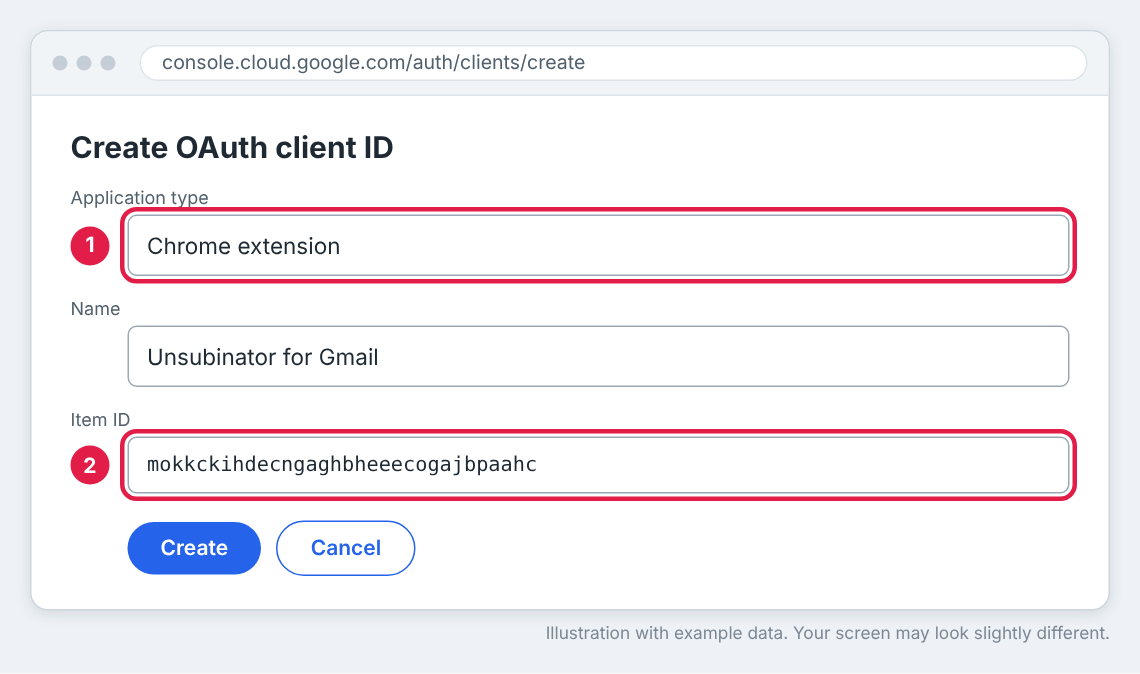
    Create OAuth client form with Chrome extension type and the item ID
    The item ID must be exactly this, or sign-in will fail.
  2. Copy the Client ID it shows (1). It ends in .apps.googleusercontent.com. You can find it again later on the Clients page.
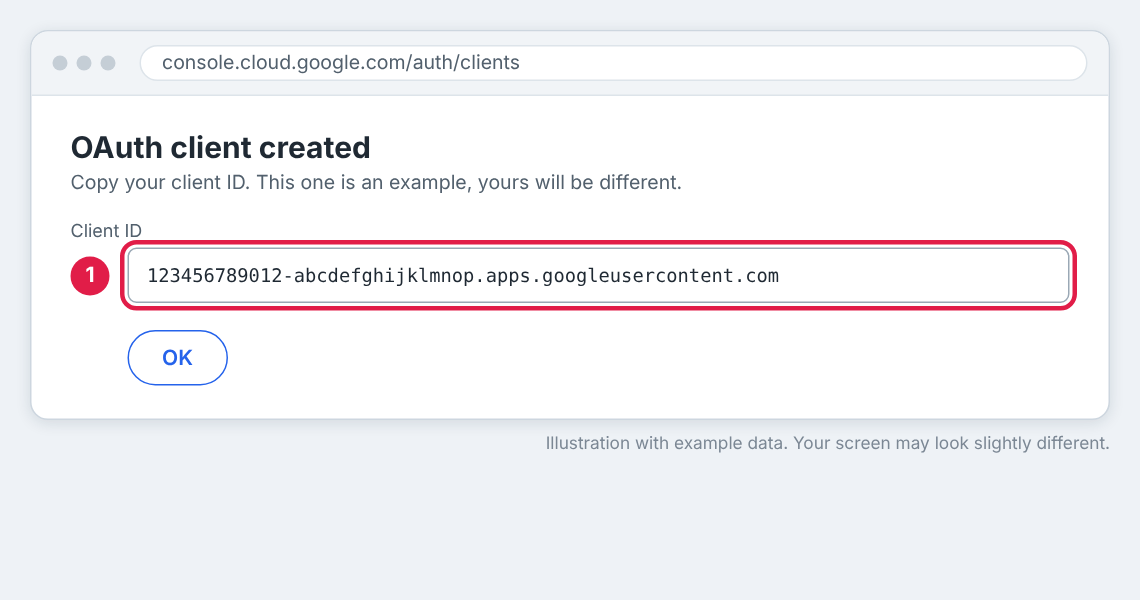
    Client created dialog showing an example client ID
    This is a made-up ID. Yours will be different.

5. Add your client ID and load the extension

  1. Open manifest.json in a plain-text editor (Notepad, VS Code, or TextEdit in plain-text mode). Replace YOUR_CLIENT_ID.apps.googleusercontent.com with your own client ID. Keep the straight quotation marks and the comma at the end of the line, then save.
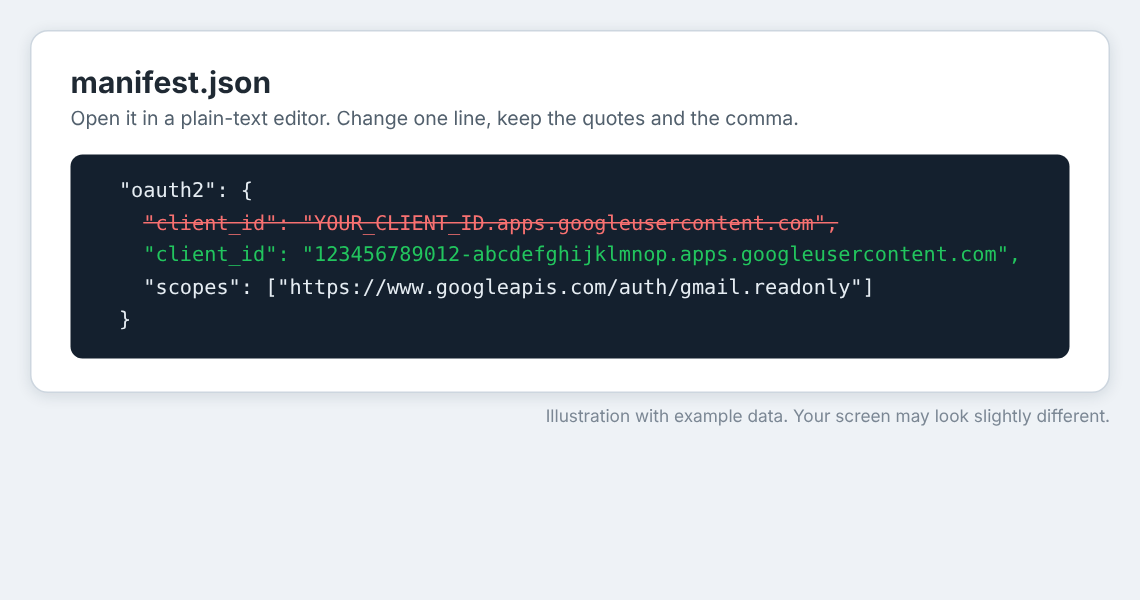
    manifest.json with the client ID line changed
    Only this one line changes.
  2. In Chrome, go to chrome://extensions. Switch on Developer mode (1), click Load unpacked (2) and choose the unsubinator folder, the one that directly contains manifest.json.
  3. Check that the ID on the extension's card is mokkckihdecngaghbheeecogajbpaahc (3). If it isn't, sign-in will fail with "bad client id".
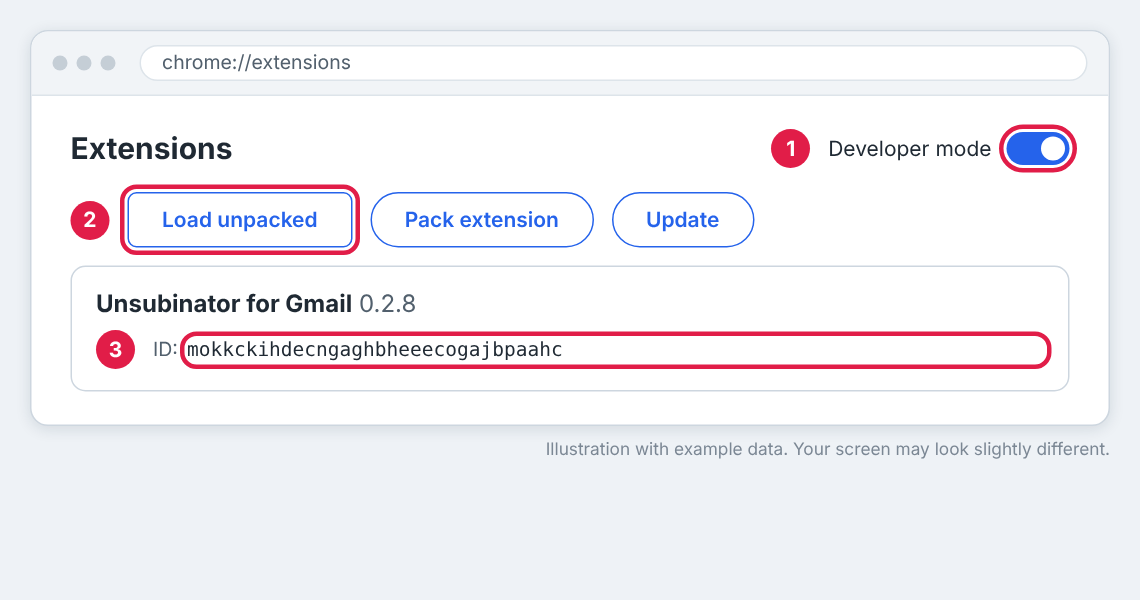
    Chrome extensions page with Developer mode on and Load unpacked highlighted
    Pin the extension from the puzzle-piece menu so it's easy to find.

6. Run your first scan

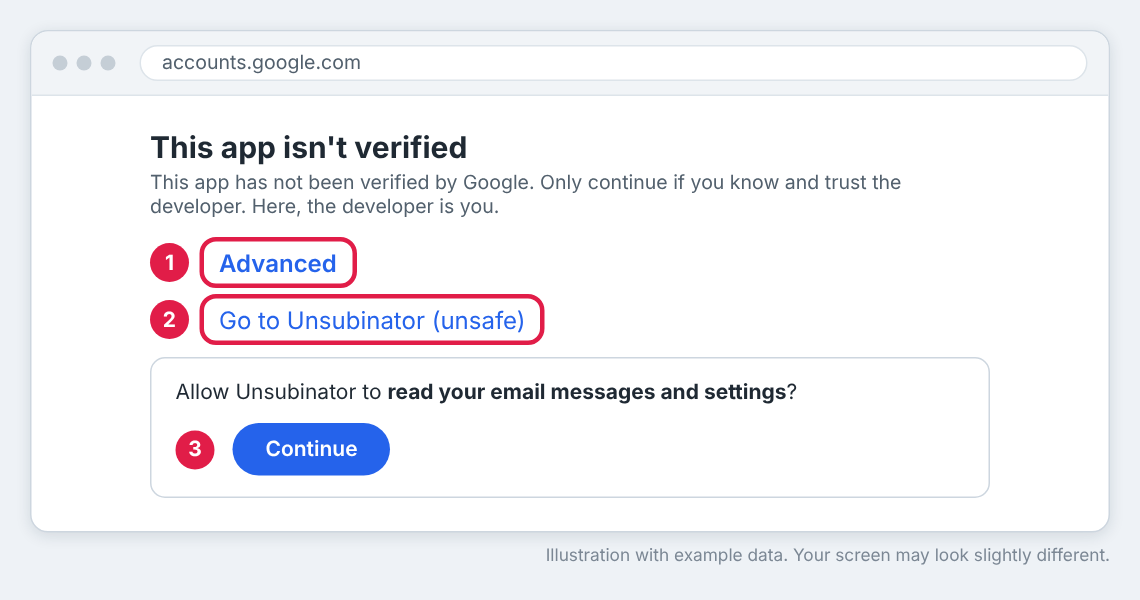
  1. Click the Unsubinator icon and start a scan. Google will say the app isn't verified. That's expected, because it's your own project and you're the developer. Click Advanced (1), then Go to Unsubinator (unsafe) (2), then Continue (3) to allow read-only access.
    Google unverified app warning with the Advanced link highlighted
    You'll only see this warning once per sign-in.
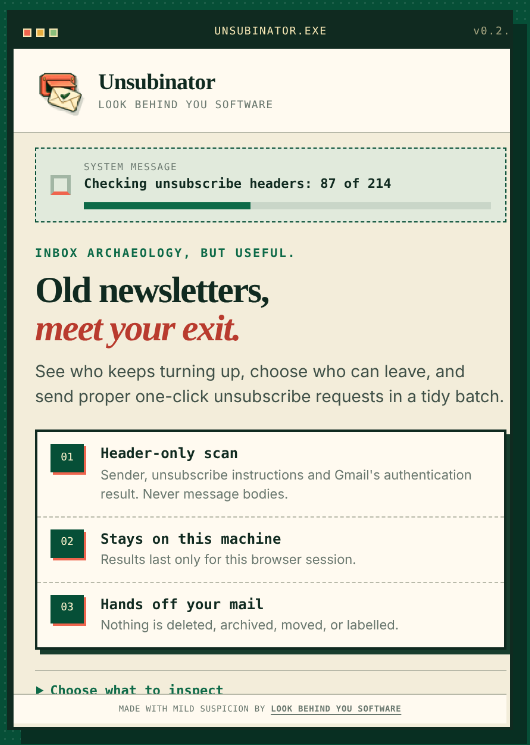
  2. A progress bar shows the scan as it runs, and the senders appear when it finishes.
    Unsubinator popup showing scan progress
    The popup while a scan is running.

If something goes wrong

Good to know

Enjoying it?

Unsubinator is free and built by one small studio. If it's cleared your inbox and you fancy saying thanks, a coffee is always appreciated.

โ˜• Buy me a coffee

Stuck? Email hello@lbysoftware.co.uk.